Dev Container
This guide will walk you through setting up a development environment for Clover2 using Visual Studio Code and running the Gazebo simulator via a Dev Container.
What Is a Dev Container?
A Dev Container is a pre-configured development environment that runs inside Docker. It comes pre-loaded with all the essential tools and dependencies required for Clover2, such as ROS 2 Jazzy, Gazebo, MAVROS, and various build tools. By using a Dev Container, you avoid the complex process of manually installing and configuring these programs on your host operating system. Once Docker and Visual Studio Code are ready, you simply open the project and launch the container to begin working.
1. Preparation
Important
All commands and actions in this section must be performed on your local host computer, not inside the Dev Container. If you have already installed Docker, VS Code, and the Dev Containers extension, you may skip this section.
1.1. Installing Docker
Follow the Docker installation instructions to set up Docker on your system.
1.2. Installing Visual Studio Code
Download Visual Studio Code from the official website and install the version appropriate for your operating system.

For Ubuntu-based Linux, download the .deb installation file (e.g., the x64 version) for your system.
Open a terminal, navigate to the directory containing the downloaded file, and run the following command:
sudo apt install -f ./path-to-file/code_*.deb
1.3. Installing the Dev Containers Extension
Launch VS Code.
Open the
Extensionsview.Search for
Dev Containers.Locate the extension published by Microsoft and click
Install.

2. Cloning the Project
Perform these steps on your local host computer.
2.1. Set Up Your Project Directory
Create a dedicated folder to organize your projects. For example, to create and enter a ~/projects folder, run:
mkdir -p ~/projects
cd ~/projects
mkdir -pcreates the folder if it doesn’t yet exist.cdnavigates into the newly created folder.
2.2. Clone the clover2-dev Repository
Download the project source code from GitHub by running:
git clone https://github.com/klever-coex/clover2-dev.git
cd clover2-dev
git clonedownloads the repository to your local machine.cdmoves your terminal session into theclover2-devdirectory.
3. First Launch of the Dev Container
All following actions must be performed within Visual Studio Code on your local machine.
3.1. Open the Project in VS Code
If your terminal is already in the clover2-dev, you can open the project quickly by running:
code .
If the code command is not recognized, launch Visual Studio Code manually, go to File → Open Folder, and select the clover2-dev folder.
3.2. Launch the Dev Container
In VS Code, follow these steps:
Press
Ctrl+Shift+Pto open the Command Palette.Type
Reopen in Containerinto the search bar.Select the
Dev Containers: Reopen in Container.If prompted to select a specific configuration, choose the one that matches your hardware:
clover2-dev:universe-devel— standard configuration for most users.clover2-dev:universe-devel (NVIDIA)— specifically for systems equipped with an NVIDIA graphics card.
Important
During the initial launch, VS Code will download all necessary dependencies. This process can take 5–10 minutes depending on your internet connection.
Once the connection is established, you will see a remote development indicator in the lower-left corner of the VS Code window. This confirms you are now working inside the Dev Container.

Downloading Dependencies and the First Build
All commands in this section must be executed within the Dev Container terminal.
Ensure the terminal is opened at the root of the clover2-dev project (the directory containing the src folder).
Downloading Dependencies
The repos/simulation.yaml contains a list of all required repositories, including the source code for clover2 and clover2-sim.
To download these dependencies into your src folder, run:
vcs import src --recursive < repos/simulation.yaml
Important
This process may take a significant amount of time because it includes downloading the large PX4 source code. Do not close the terminal until the command has fully completed.
Building the Workspace
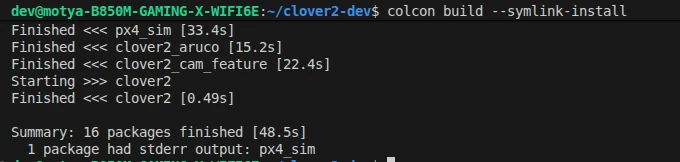
Once the dependencies are downloaded, you need to build the project. Execute the following commands in the clover2-dev root directory:
source /opt/ros/jazzy/setup.bash
colcon build --symlink-install
The first command loads the pre-installed
ROS 2 Jazzyenvironment.The second command complies the project packages and stores the build artifacts in the
installdirectory.
Sourcing the Built Packages
To ensure ROS 2 can locate and use your newly built Clover2 packages, you must source the workspace in your current terminal:
source ./install/setup.bash
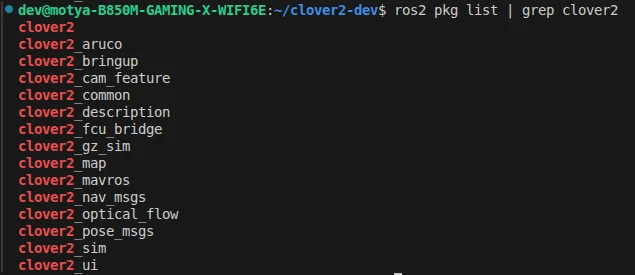
ros2 pkg list | grep clover
The first command applies the build results to your current session.
The second command searches the list of available ROS 2 packages for any containing the word
clover.
If the setup was successful, you should see a list of Clover2 packages in the output.
Clover2 packages in the workspace
To avoid manually sourcing the workspace every time you open a new terminal, you can automate this by adding the command to your ~/.bashrc:
echo "source ~/clover2-dev/install/setup.bash" >> ~/.bashrc
After completing these steps, you are ready to proceed to the {ref}`Simulator Launch