Radio Controller Setup Guide
This guide describes how to set up the RadioMaster Pocket ELRS controller and bind it with the ExpressLRS receiver.
Caution
Before configuring, remove the propellers from the quadcopter to prevent the motors from starting accidentally.
Controller Overview

Controller front view

Controller rear view
Preparing the Controller
Remove the black rubber pads from the controller back.
Insert the battery into the designated compartment. Check the polarity (+/-).
Reinstall the rubber pads.
Press and hold the
POWERbutton to turn on the controller.If a
WARNINGappears on the screen, set the Throttle stick to its lowest position and move all switches to their neutral/zero positions.

Warning screen
Once the warning is cleared, navigate to the main menu.
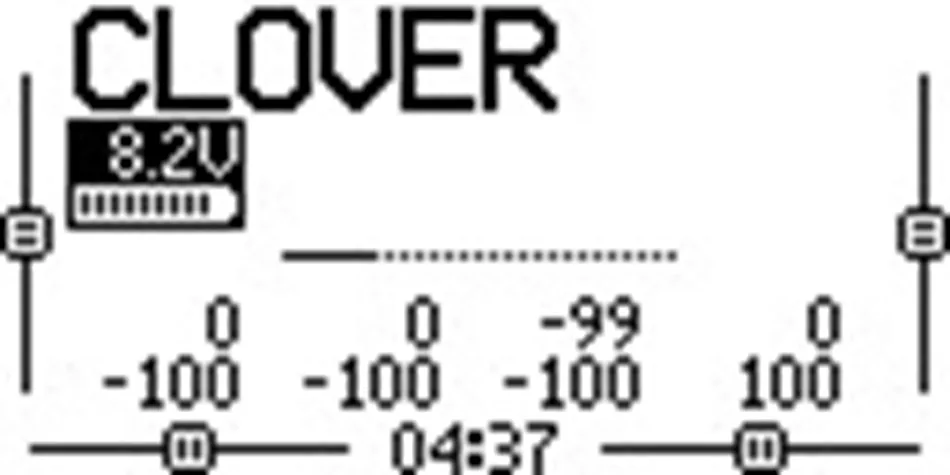
Main menu
Configuring a Model for Betaflight
Note
If the Clover 5 FPV model is already configured, verify the Internal RF mode and Channel assignment in the MIXES menu before proceeding to binding.
You may either create a model manually or load a pre-configured file.
Creating a Model Manually
Press the
MDLbutton.Select an empty slot and press and hold the rotary encoder.
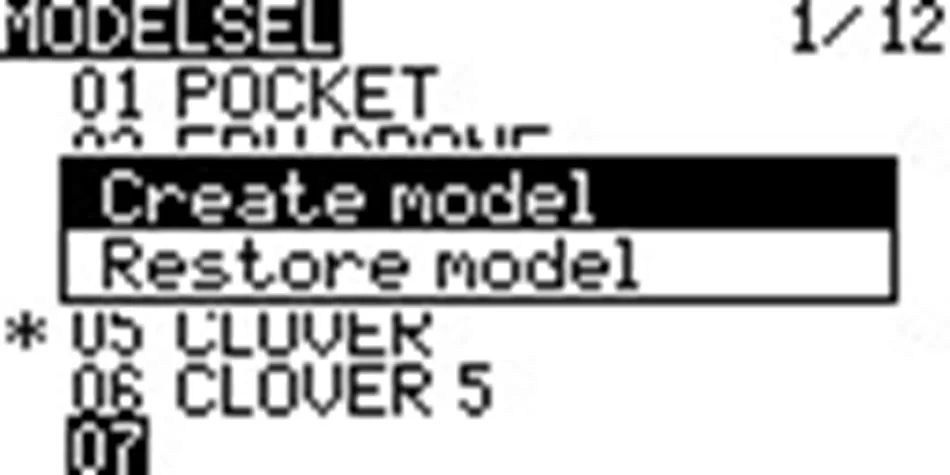
Creating model
Select
CREATE MODEL.Press
PAGE, use the rotary encoder to selectModel nameand name your model (e.g.CLOVER FPV).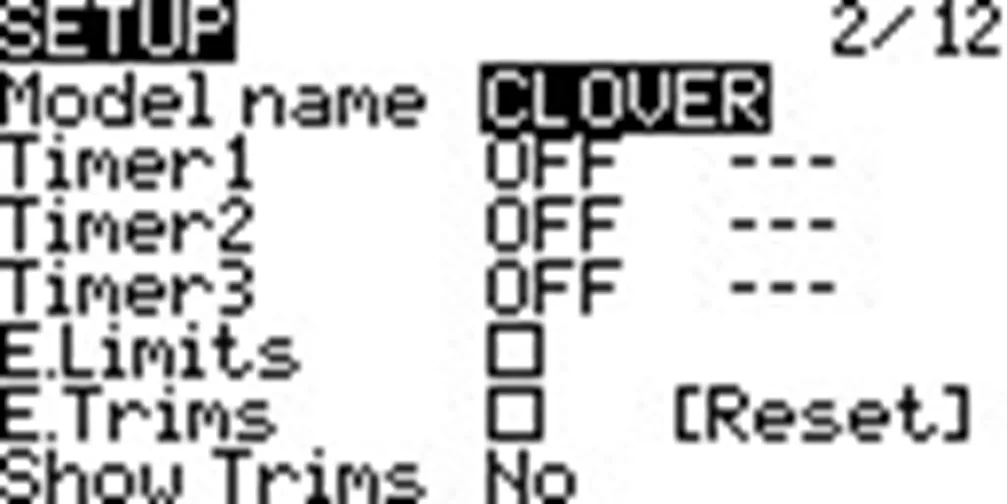
Model naming
Press
RTNand scroll down to theInternal RFsection. Set theModetoCRSF.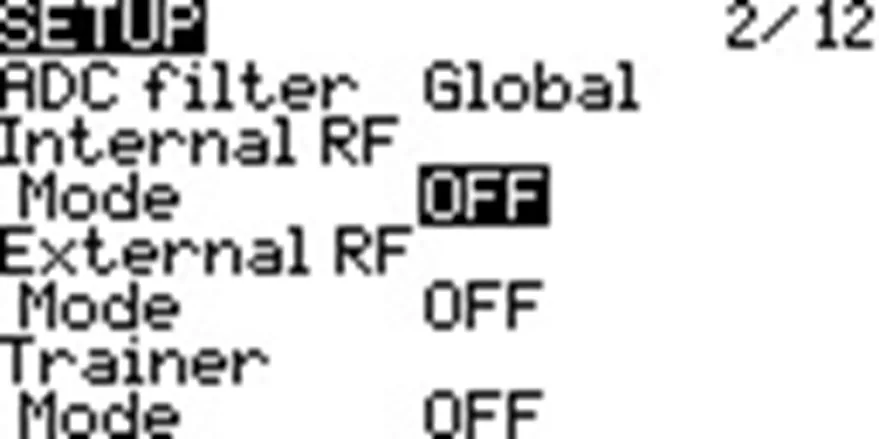
Internal RF disabled
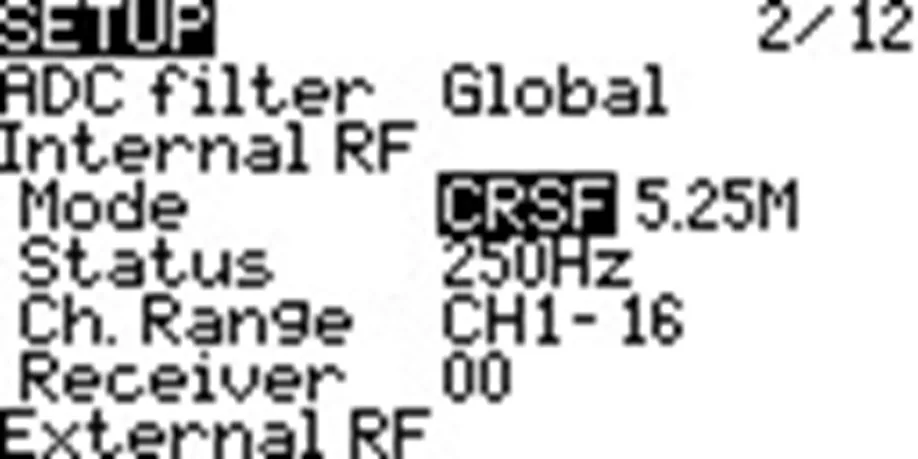
CRSF mode
Navigate to the
MIXESpage and assign the following switches to the additional channels:CH5 / AUX1—SA;CH6 / AUX2—SB;CH7 / AUX3—SC;CH8 / AUX4—SD.
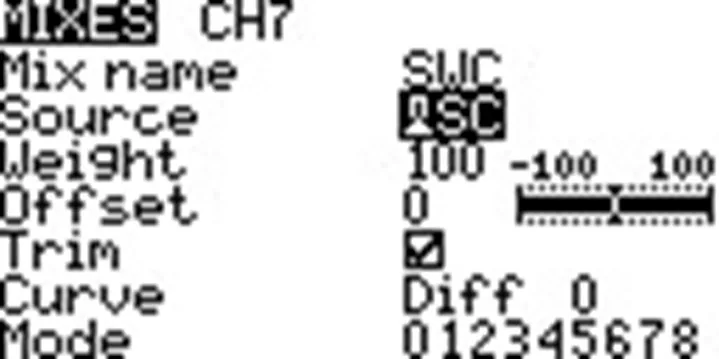
Channel settings
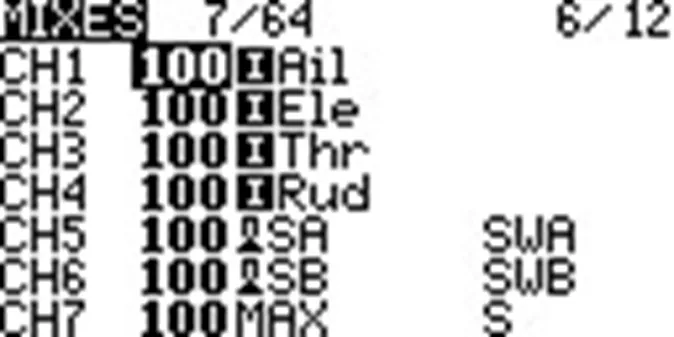
Model channels
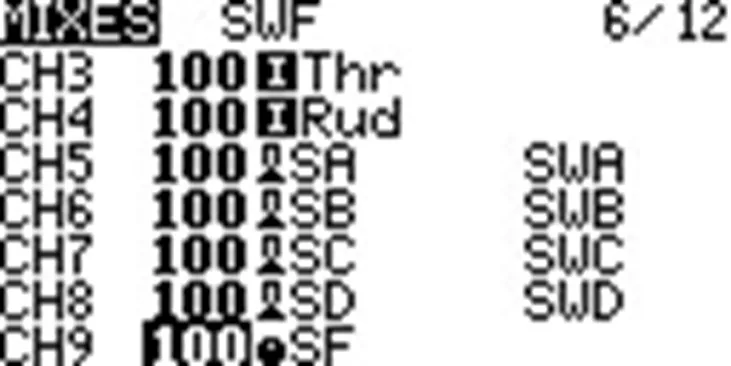
Switches
Press
RTN. After binding, open the Betaflight Configurator and check theReceivertab to ensure that moving the sticks and switches updates the corresponding channels correctly.
Loading a Pre-configured Model
To save time, you can load a pre-configured profile:
Download the model file:
model05.yml.Power on your controller and connect it to your computer via a USB-C cable using the top USB port. Select
USB Storage (SD)on the device.Open the device’s storage on your computer and move to the
MODELSdirectory.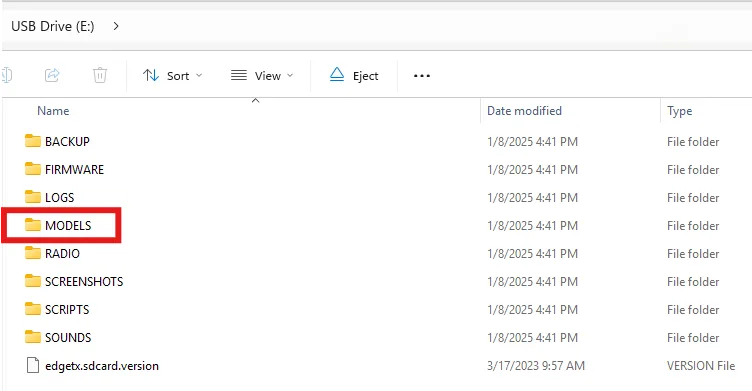
Models folder
Copy the
model05.ymlfile into theMODELSfolder.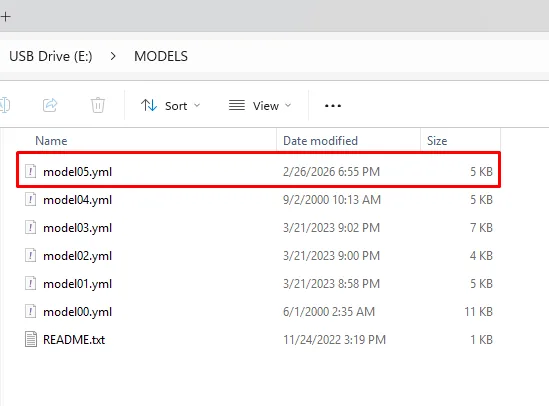
Model file
Safely eject the storage, disconnect the cable, and select the newly loaded model from the
MDLmenu.Confirm that
Internal RFis set toCRSFmode and that switches are correctly assigned toCH5–CH8.
Binding Using a Binding Phrase
The Binding Phrase must be identical on both the transmitter and the receiver. This method requires ExpressLRS 3.0 or newer. If your devices are running older firmware, update them via the ExpressLRS Web Flasher before proceeding.
Transmitter Setup
Power on the control equipment and press
SYS.Open the
ExpressLRStool.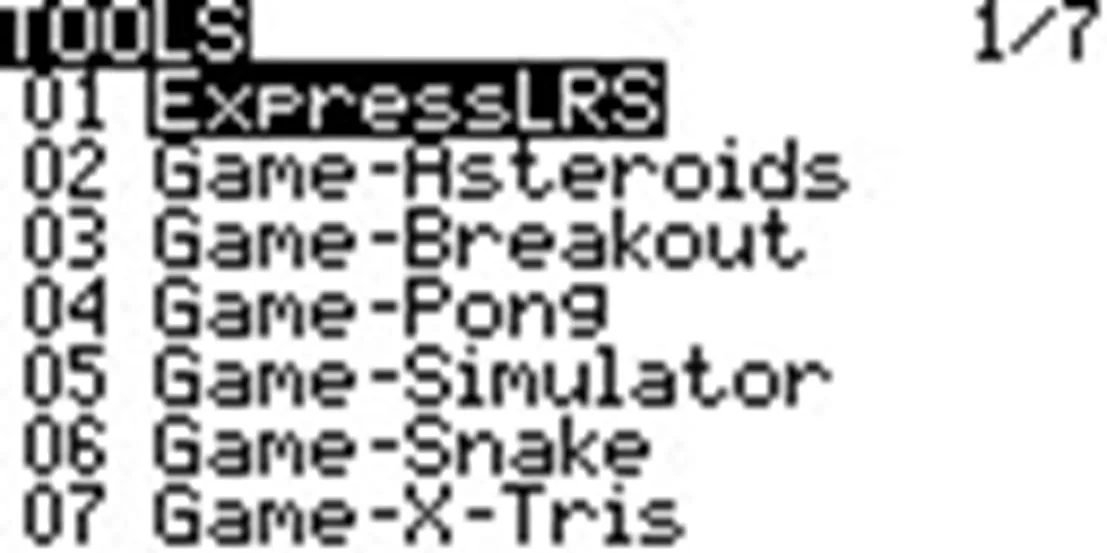
ExpressLRS
Select
WiFi Connectivity, then selectEnable WiFi. Wait until theWiFi Runningmessage appears.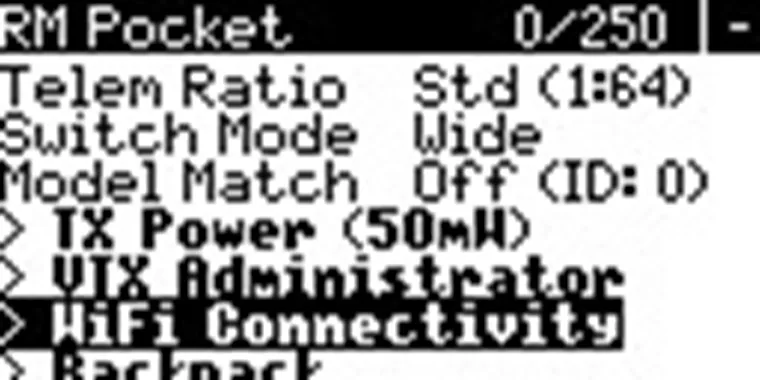
WiFi Connectivity in ExpressLRS
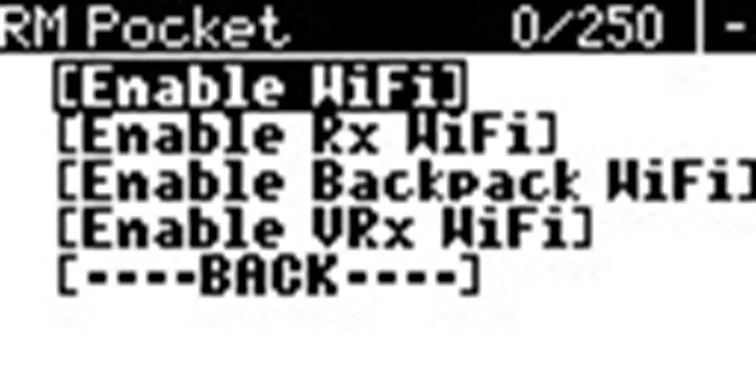
Wi-Fi enabling
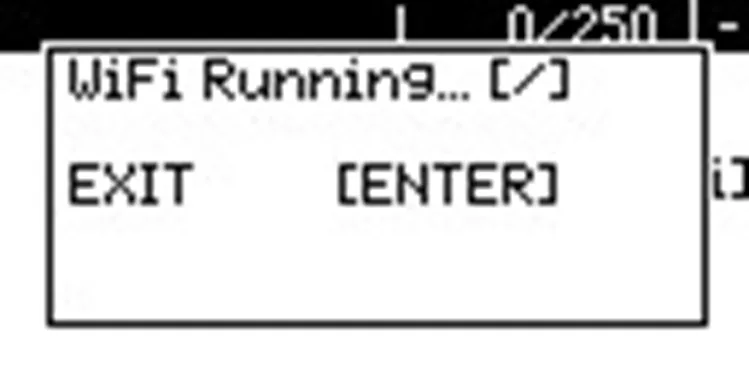
Wi-Fi running
On your computer or smartphone, connect to the
ExpressLRS TXWi-Fi network (Default password:expresslrs).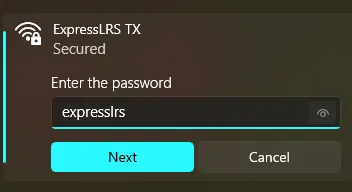
Connecting to ExpressLRS TX
Open a web browser and go to:
http://10.0.0.1.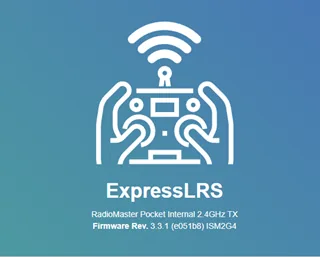
Web interface
In the
Binding Phrasefield, enter your chosen phrase and clickSAVE.
Click
REBOOTto confirm.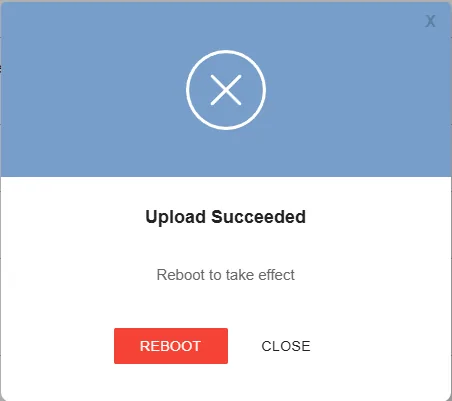
ExpressLRS reboot
Receiver setup
Caution
Before powering the receiver for an extended period, ensure the antenna is connected to the Video Transmitter (VTX) to prevent damage. You may temporarily disconnect the VTX from the flight controller to keep it cool. Never install propellers during this process.
Turn off the controller to prevent connection attempt.
Power on the flight controller and wait approximately 60 seconds. When the receiver enters Wi-Fi mode, its LED will begin blinking rapidly.
Connect your computer or smartphone to the
ExpressLRS RXWi-Fi network (Default password:expresslrs).
Connecting to ExpressLRS RX
Open a web browser and go to:
http://10.0.0.1.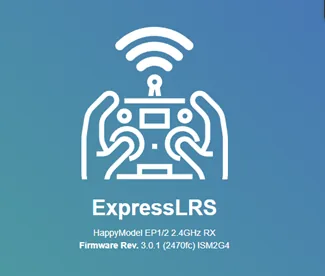
Web interface
Enter the exact same phrase used on the transmitter in the
Binding Phrasefield. ClickSAVE & REBOOT.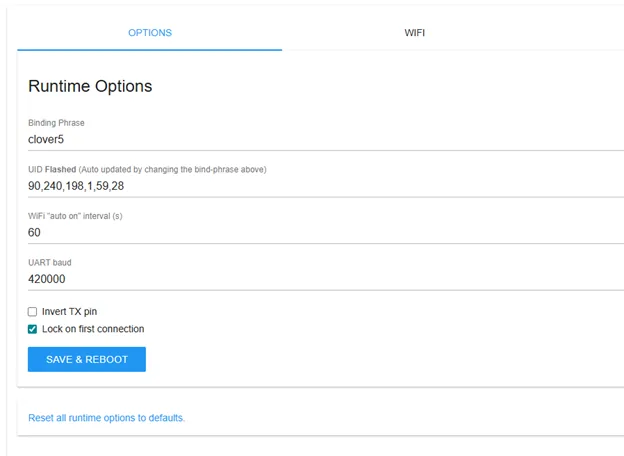
Binding Phrase
When the confirmation window appears, click
REBOOTand wait for the receiver to restart.
Reboot
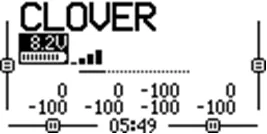
Turn on your controller. Once connected, a receiver indicator will appear on the main screen.
Binding in Bind Mode
If you cannot use a Binding Phrase, use the manual Bind Mode:
Turn the ELRS receiver into bind mode by connecting and disconnecting power to the flight controller three times in quick succession. The receiver LED should begin blinking in a specific pattern (two blinks followed by a pause).
On the controller, press
SYSand open theExpressLRS toolto initiate the binding process.
ExpressLRS menu
Set
TX Powerto100 mW.
TX Power
Select
Bindand wait for binding to complete.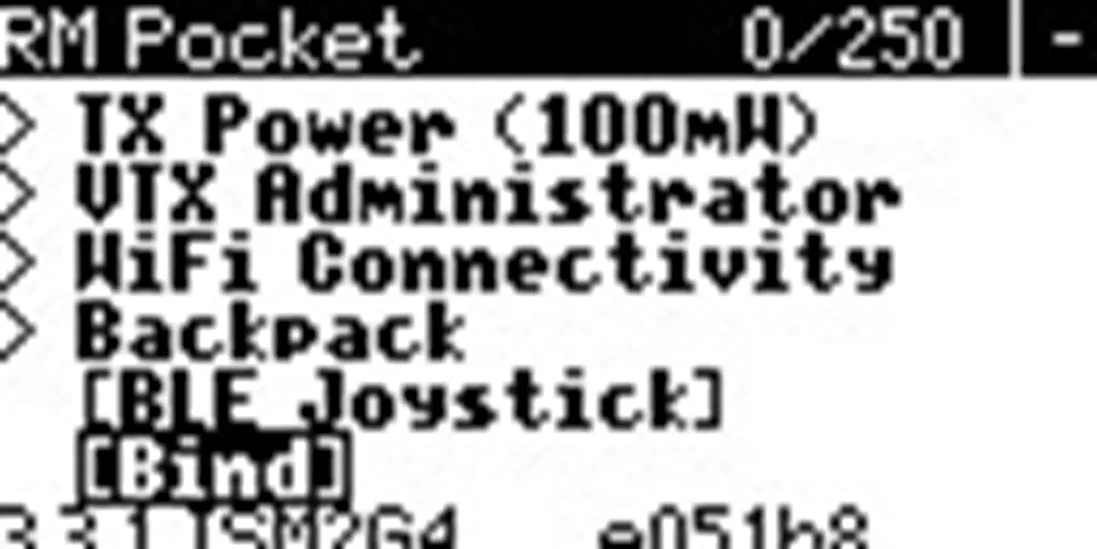
ExpressLRS binding start
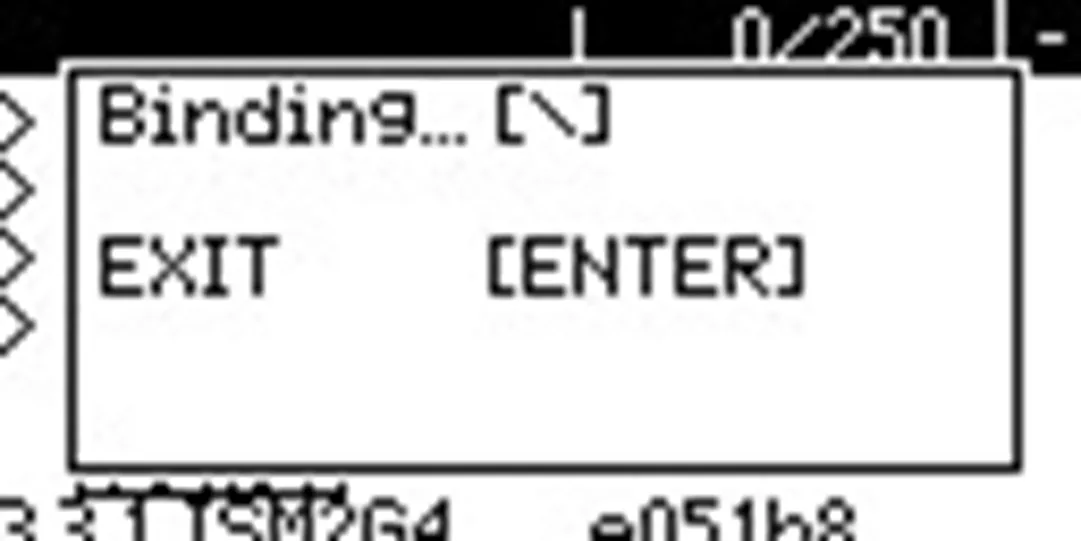
ExpressLRS binding
Press and hold the
RTNbutton to return to the main menu. Make sure that a connection indicator with the receiver is displayed on the main screen.
Receiver bound
After binding, open the Receiver tab in Betaflight Configurator and check the operation of the sticks and all assigned switches.
For more details on binding methods, see the ExpressLRS.