LiDAR User Guide
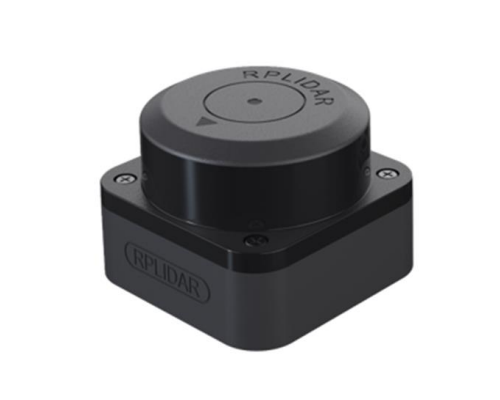
RPLiDAR C1
The LiDAR C1 is a high-performance 2D LiDAR sensor capable of performing 360° environmental scanning. By measuring distances to objects across a full circle, it generates a precise point cloud that enables advanced capabilities such as obstacle detection, autonomous navigation, and real-time spatial mapping.
Principle of Operation
The RPLiDAR C1 operates using Time-of-Flight (ToF) technology. The sensor emits an infrared laser signal toward an object. This signal reflects off the surface and returns to the sensor. Integrated electronics then process the reflected signal to calculate the exact distance to the object.
Because a single measurement only captures one point in space, the LiDAR’s scanning module rotates continuously to capture data from all directions. During one complete revolution, the device collects a comprehensive set of data points, each defined by its specific angle and distance.
Example of a single measurement:
Angle:    45°
Distance: 1.8 m
If no object is detected in the beam’s path or the reflected signal is too weak, the measurement may be invalid. Navigation and mapping algorithms are designed to automatically ignore these null values.
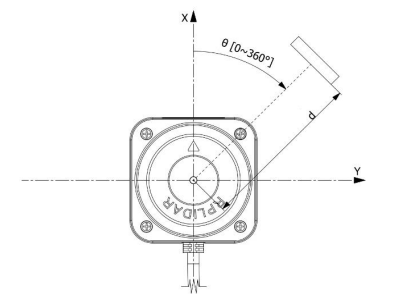
RPLiDAR C1 coordianates
Mechanical System
The RPLiDAR C1 scanning module rotates clockwise. It operates at a standard scanning frequency of 10 Hz, meaning the device completes approximately 10 full revolutions per second, providing 10 complete circular scans every second.
LiDAR Coordinate System
The sensor utilizes a polar coordinate system to describe the position of detected points. Each data point consists of two primary values:
Angle: specific direction in which the measurement was taken.
Distance: range from the center of the LiDAR to the detected object.
The origin (0,0) is located at the center of the LiDAR.
The X axis serves as the reference point for all angular measurements.
Data in ROS 2
When integrated with ROS 2, the LiDAR driver typically publishes data to the /scan topic using the sensor_msgs/msg/LaserScan message type.
Each message contains the configuration parameters for the scan and an array of the measured distances.
Main field of LaserScan:
Field |
Description |
|---|---|
|
Name of the LiDAR coordinate frame (e.g. |
|
Start and end angles of the scanning range (in radians) |
|
Angular step between adjacent measurements (in radians) |
|
Minimum and maximum valid distance thresholds |
|
Array of measured distances (in meters) |
Each element in the ranges array corresponds to a specific beam direction.
For any index i in the array, the angle and distance can be calculated as follows:
angle = angle_min + i * angle_increment
distance = ranges[i]
How to Install a LiDAR
Attach the plastic mounting deck using M2.5x6 screws.

Mounting the deck
Install the M3x40 aluminum standoffs onto the mounting deck using M3x6 screws.

Installing the standoffs
Mount the prepared RPLiDAR C1 onto the aluminum standoffs using M3x6 screws.

Securing the RPLidar C1
Connect the LiDAR to the Raspberry Pi 5 via the USB port using the included cable and adapter.
Secure all cables with cable ties. Ensure cables are taut, do not sag, and are kept well clear of the propeller rotation area to prevent mechanical interference or damage.
Usage
How to Launch your LiDAR via clover2-settings
To enable the LiDAR on your quadcopter, follow these steps to update the system configuration:.
Launch the configuration utility by running the following command in your terminal:
clover2-settings.Navigate to the
additional_sensorssection and enable the2d_lidarparameter.
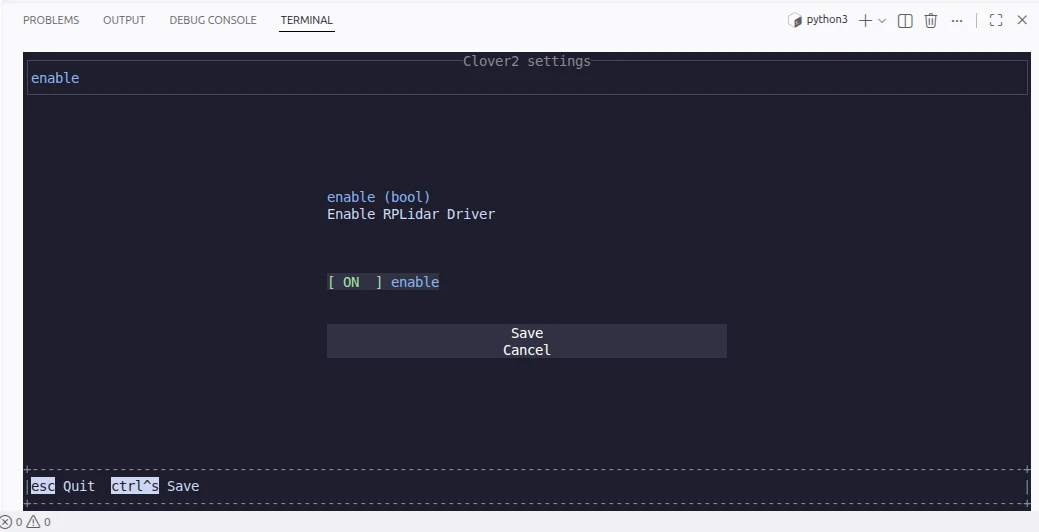
Save your changes. To apply the new configuration, restart the
clover2service:
sudo systemctl restart clover2
Once the service has restarted, the LiDAR should begin rotating, and the driver will start publishing sensor_msgs/msg/LaserScan messages to the /scan topic.
Open a second terminal to confirm the topic is active and correctly configured.
Check for the topic:
ros2 topic list | grep scan
ros2 topic info /scan
The output for ros2 topic info /scan should confirm the type:
Type: sensor_msgs/msg/LaserScan
Verify publishing frequency:
ros2 topic hz /scan
In Standardmode, the expected frequency is approximately 10 Hz. Minor variations are normal.
To view a complete single message:
ros2 topic echo --once /scan
To view only the distance array (ranges):
ros2 topic echo --once /scan --field ranges
If the /scan topic shows a non-zero frequency and the ranges field contains data, the driver is functioning correctly.
How to Launch your LiDAR Manually
If you prefer not to use the automatic clover2-settings, method, you can launch the LiDAR driver manually. Open a terminal and execute the following command:
ros2 run rplidar_ros rplidar_composition --ros-args \
  -p serial_port:=/dev/rplidar \
  -p serial_baudrate:=460800 \
  -p frame_id:=laser \
  -p inverted:=false \
  -p angle_compensate:=true \
  -p scan_mode:=Standard \
  -p topic_name:=scan
Parameter Definitions:
serial_port— file path to the LiDAR’s serial device.serial_baudrate— data transfer rate (baud rate).frame_id— name assigned to the LiDAR coordinate frame.inverted— inverting the scanning direction.angle_compensateenables compensation for angular measurement errors.scan_mode— scanning mode to be used.topic_name— ROS 2 topic name for data publication.
Upon a successful launch, your terminal will display status information similar to this:
RPLidar running on ROS2 package rplidar_ros. RPLIDAR SDK Version:2.1.0
RPLidar health status : OK.
current scan mode: Standard, sample rate: 5 Khz, max_distance: 16.0 m, scan frequency:10.0 Hz
RPLidar health status : OK. indicates the driver has verified the hardware is in normal operating condition.
Status Line displays the current scanning mode, sampling rate, maximum range, and scan frequency.
Specific values may vary depending on your hardware settings and driver version.