Klever 5 FPV
Fasteners
Attention
Use fasteners only as specified in this assembly guide. Using incorrect sizes for screws, nuts, or standoffs may cause damage to components or the structural integrity of the quadcopter.
Cell 1 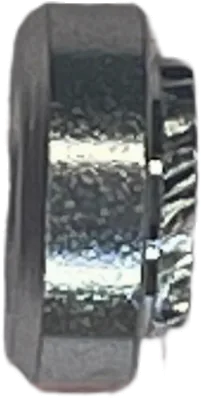
Press-fit Nut M3 |
Cell 2 
Nylon Lock Nut M3 |
Cell 3 
Nylon Standoff M2.5 |
Cell 4
Nylon Lock Nut M2.5 |
Cell 5
Nylon Lock Nut M2 |
Cell 6 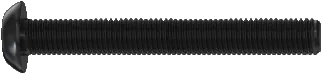
Screw M3x30 |
Cell 7 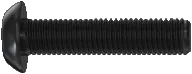
Screw M3x12 |
Cell 8 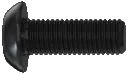
Screw M3x8 |
Cell 9 
Screw M3x6 |
Cell 10 
Screw M3x4 |
Cell 11 
Aluminum Standoff M3x40 |
Cell 12 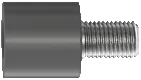
Anti-vibration Standoff M3 |
Cell 13 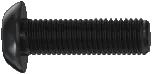
Screw M3x10 |
Cell 14 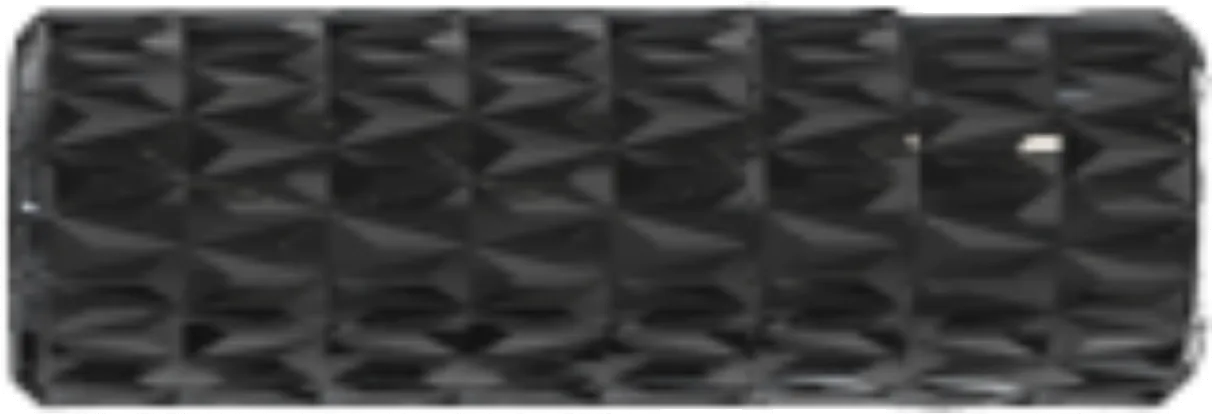
Aluminum Standoff M3x10 |
Cell 15
Aluminum Standoff M3x30 |
Cell 16 
Screw M2x6 |
Cell 17 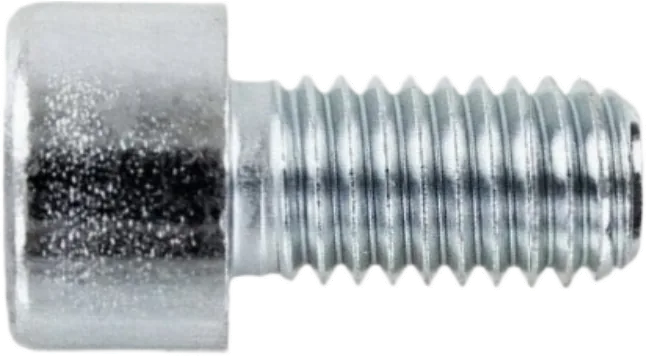
Screw M2.5x4 |
Cell 18
Screw M2.5x6 |
Cell 19 
Self-tapping Screw M1.4x4 |
Cell 20
Screw M2x3 |
Cell 21 
Nylon Standoff M3x30 |
Cell 22 
Nylon Standoff M3x20 |
Cell 23 
Nylon Standoff M3x40 |
Cell 24 
Self-tapping Screw M1.4x10 |
Cell 25 
Screw M2.5x25 |
Frame Assembly
Position the four arms between the intermediate and lower frame plates. Once aligned, install the frame crossbar between the arms.
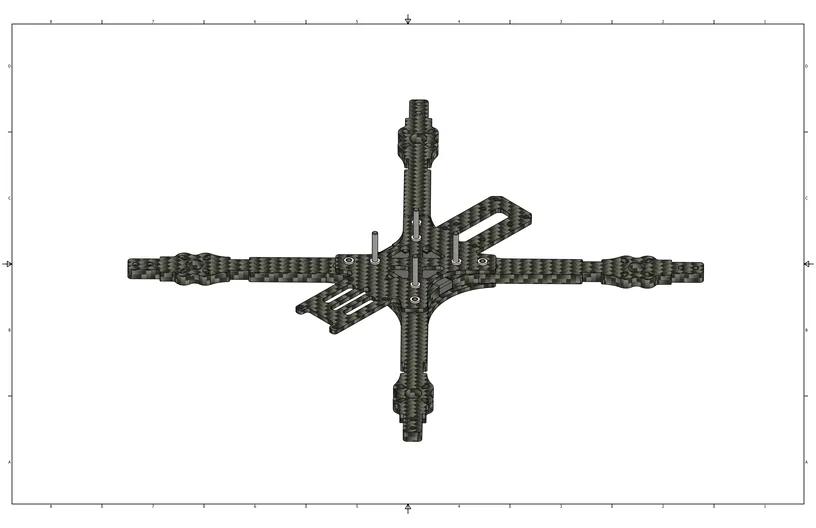
Arm alignment
Insert M3x12 screws (Cell 7) into the outer holes of the lower frame plate. Insert M3x30 screws (Cell 6) into the central holes of the lower frame plate.

Assembling the frame
Install M3 press-fit nuts (Cell 1) into the designated holes on the intermediate frame plate. Tighten the screws installed in the previous step until the frame arms are securely fastened.

Securing the frame
Motor and ESC Installation
Install the arm guards as shown in the image.

Installing the arm guards
Install the motors into the designated holes on the arms and secure them using M3x10 screws (Cell 13).
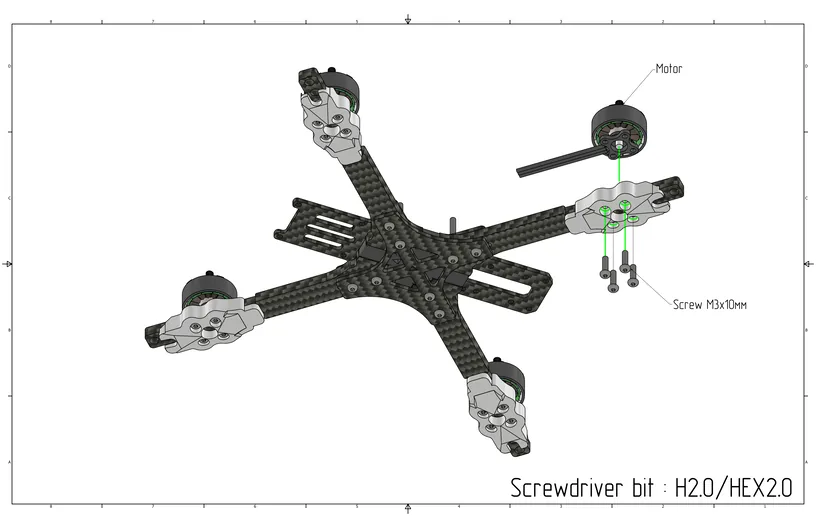
Motor mounting
Caution
Ensure the screws do not protrude into the motor winding area. Too long screws can damage the windings and cause a short circuit.
Install the Electronic Speed Controller (ESC) onto the M3x30 screws (Cell 6) on the intermediate frame plate. Route the battery power contacts toward the rear of the frame.

ESC mounting
Install wire protectors and route the motor wires through them. Solder the power wires and the capacitor to the ESC power contacts. Solder the motor wires to their corresponding contacts as shown in the wiring diagram.

Soldering
Install the protective cap over the power wires. Solder the XT60 power connector, then snap the protective cap onto the connector to secure it.

Power connection
Flight Controller Installation


Video Transmission System Installation
From the underside of the frame, install M3x10 screws (Cell 13). Place the video transmitter (VTX) on the top side of the frame and secure it using M3 nylon lock nuts (Cell 2).

VTX Mounting

VTX installed
Install M3x30 aluminum standoffs (Cell 15) on top, and secure them from underneath using M3x6 screws (Cell 9).

Standoff setup
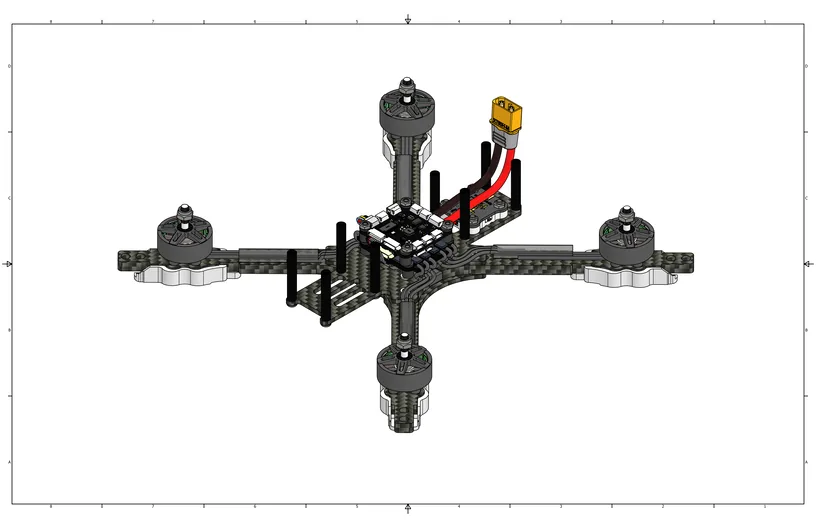
Standoffs installed
Install the camera holders to the front standoffs.

Holders installation
Install the camera into the holders using M2x3 screws (Cell 20). Adjust the camera to your preferred tilt angle and secure it.

Camera installation
Connect the camera cable to the camera port on the flight controller.

Communication
Insert the video transmitter antenna connector into the antenna mount. Tighten the connector using the 8mm propeller wrench. Attach the antenna connector to the video transmitter, then mount the antenna onto the rear standoffs.

Antenna installation
Final Assembly
Install the ELRS radio receiver and connect it using the cable to the SBUS/CRSF port on the flight controller.

Receiver installation
Install rear protective covers. To do this, hook the mounting tab behind the standoff near the flight controller, then snap the clip onto the rear standoff.

Rear protection
Use double-sided adhesive tape to install the LED modules to the inner sides of the arms.

LED mounting
Connect the LED modules to the LED hub as shown in the image. Connect the hub to the LED/Buzzer port on the flight controller.

Wiring
Route the LED module wires to ensure they are neither stretched tight nor positioned where they could interfere with moving parts.
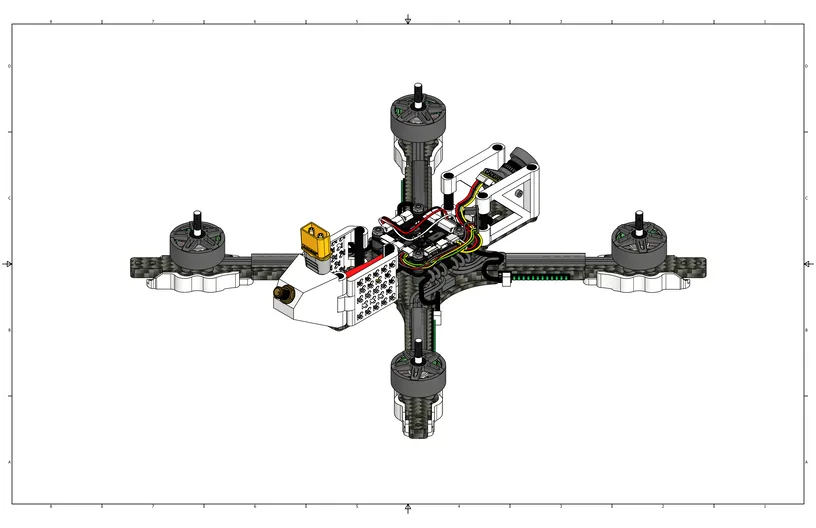
Wire management
Thread the battery strap through the designated slots, and install the top frame plate using M3x6 screws (Cell 9).

Threading battery strap
Install the side guards onto the central standoffs and snap them onto the integrated clips.

Side protection
Screw the video antenna onto the rear connector.

Installing video antenna
Install the propellers according to the rotation directions indicated in the image.

Installing the props
Before your first power-up, check the following:
All components are securely fastened.
All electrical connectors are correctly connected.
No wires are damaged and no connectors are loose.
The battery has no signs of swelling, overheating, or physical damage.
The propellers have sufficient clearance and do not contact the guard, wires, or any other quadcopter elements.
Caution
Do not power on the quadcopter until all detected faults have been fully resolved.
Flashing Firmware
Before proceeding to software configuration, replace the PX4 firmware with Betaflight. Follow the procedure outlined in the Firmware Guide.
Software Setup
After firmware flashing is complete, perform the final system configuration by following the Setup Guide.